How to export my documents?
How to export my documents?
If you need to download your document, you can do so manually (one or more documents at a time) or through our integrations with Dropbox or Google docs.
1. Downloading documents manually
Select the document you need to download
Click 'download' icon that appears on the top of the screen
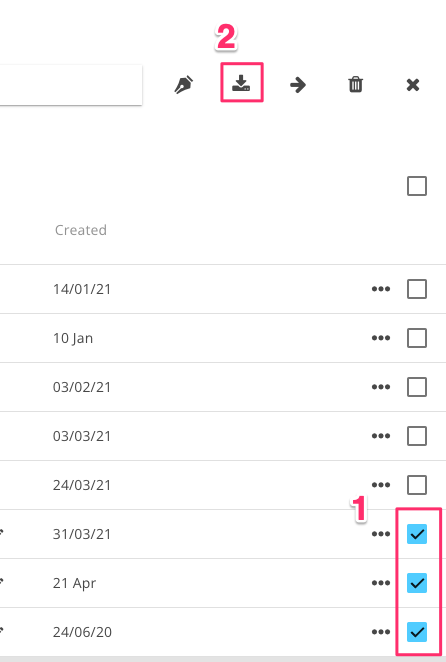
note that the 'download icon' will not appear if you select folders.
2. Exporting documents through Dropbox or Google Docs
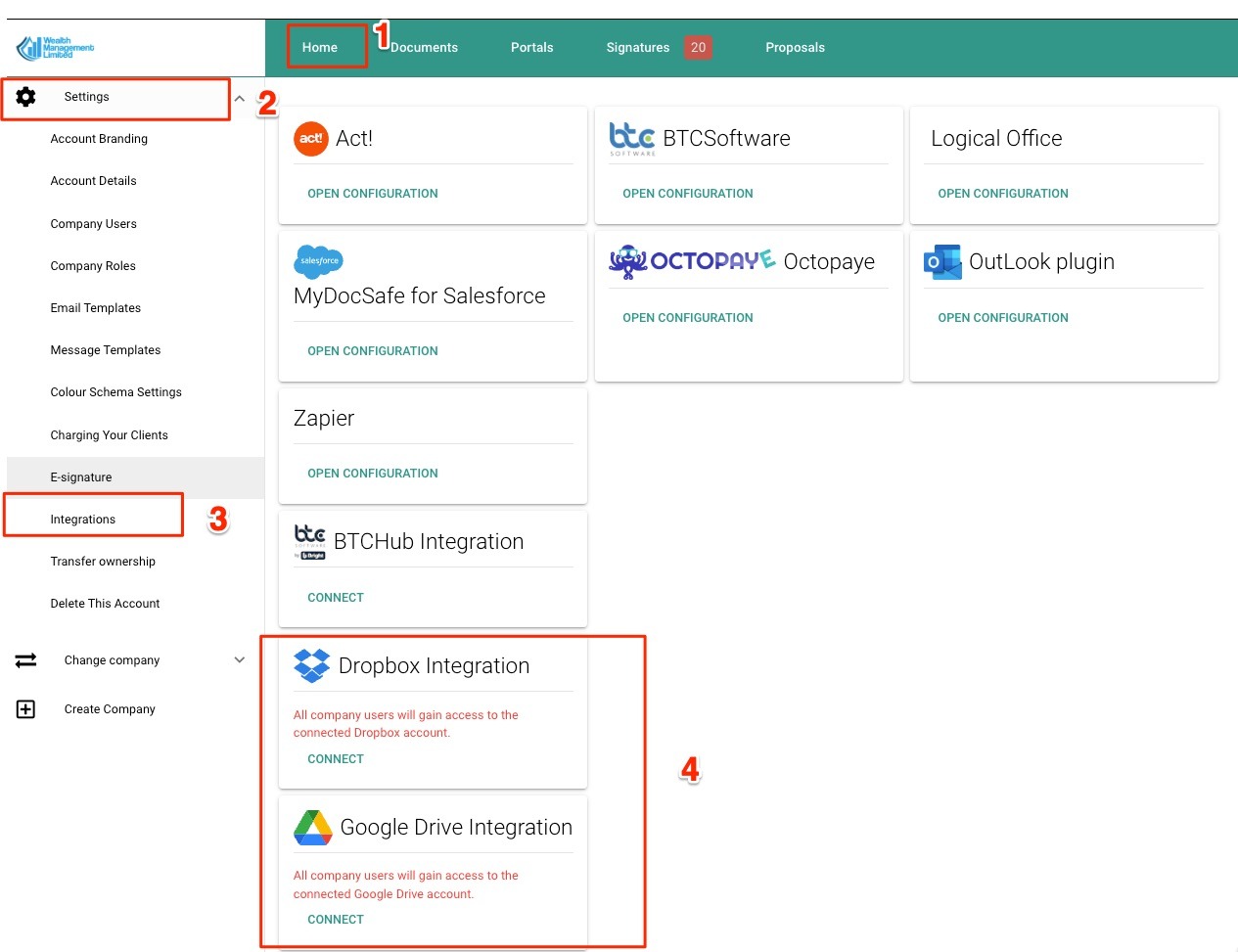
Connect your Dropbox or Google Docs accounts
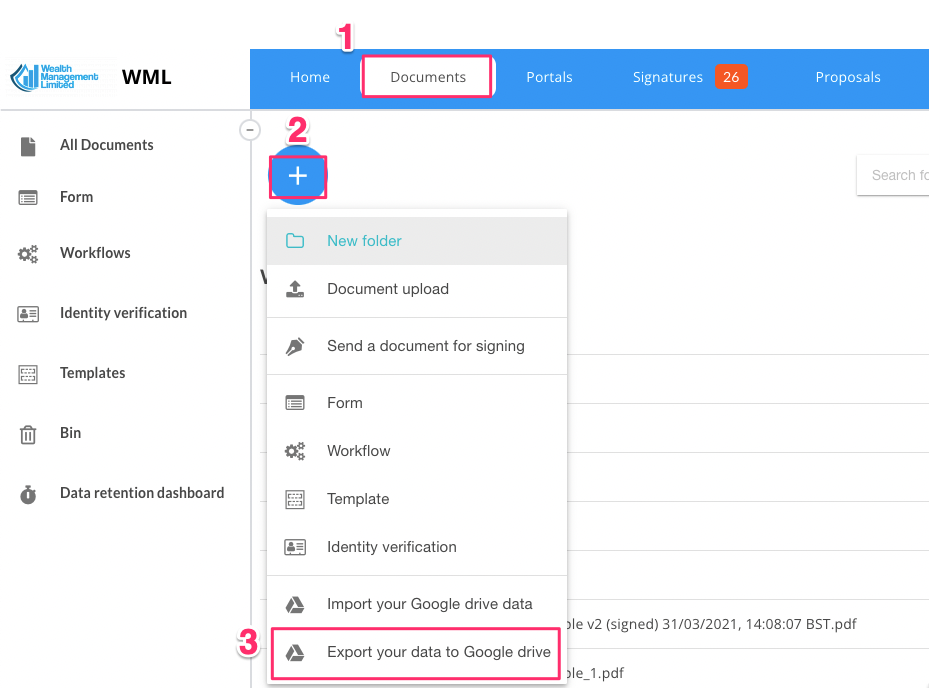
Navigate to the folder you would like to export, click the "+" button and choose "Export your data to Google drive/Dropbox"
3. Export client portal data
this option works only with Dropbox
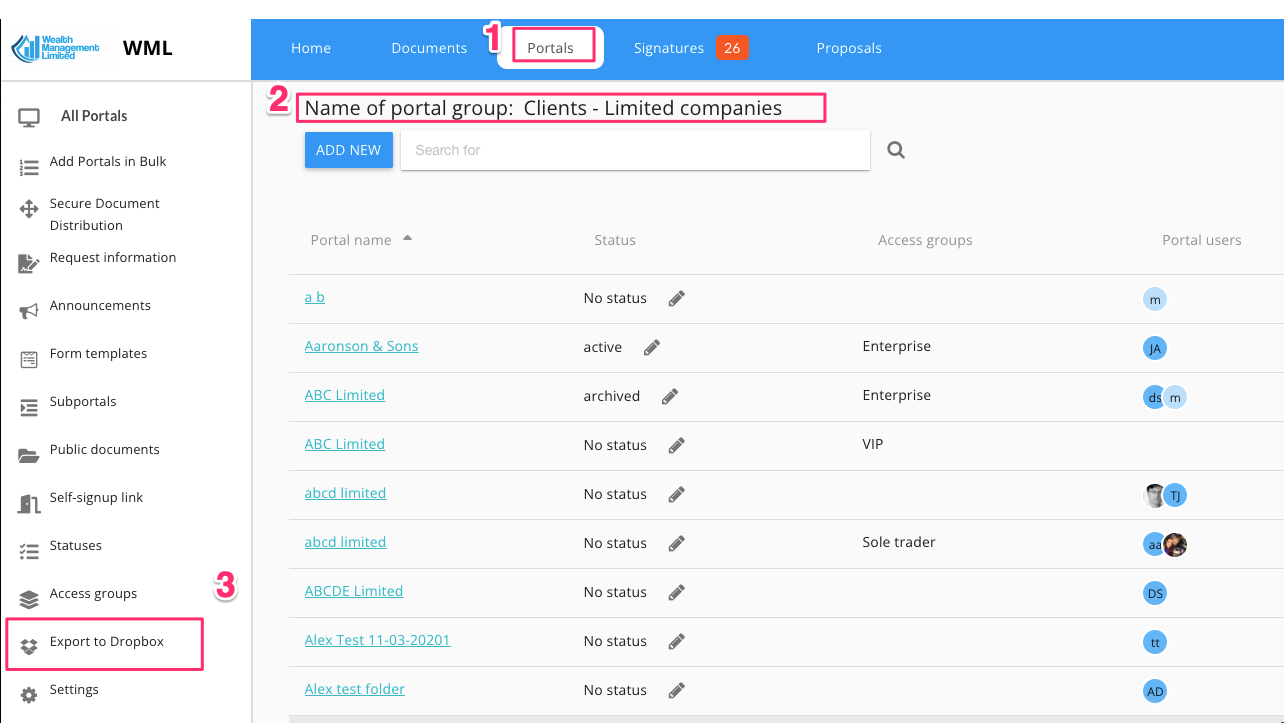
make sure your Dropbox integration is turned on (if it is not on, the 'Export to Dropbox' button will not be visible)
Enter Portals, select your portal group and click Export to Dropbox
Notes:
Currently there is no option to export your contacts